
Chapter 10 · 10.3
Migrating email via My WebOké
My WebOké has its own migration tool: Email migration. You use it to copy all your mail from your old provider, such as Gmail, Outlook, Ziggo or KPN, to your mailbox at WebOké. All your folders and your entire mail history come along. Your old mailbox stays exactly as it was. The tool is free.
Opening the tool
- Sign in to My WebOké.
- Click My Products (1) in the menu on the left.
- Click Email migration (2) at the top of the row of tabs. You'll also find Email migration in the My Products submenu, or go directly to my.weboke.nl/emailverhuizen.
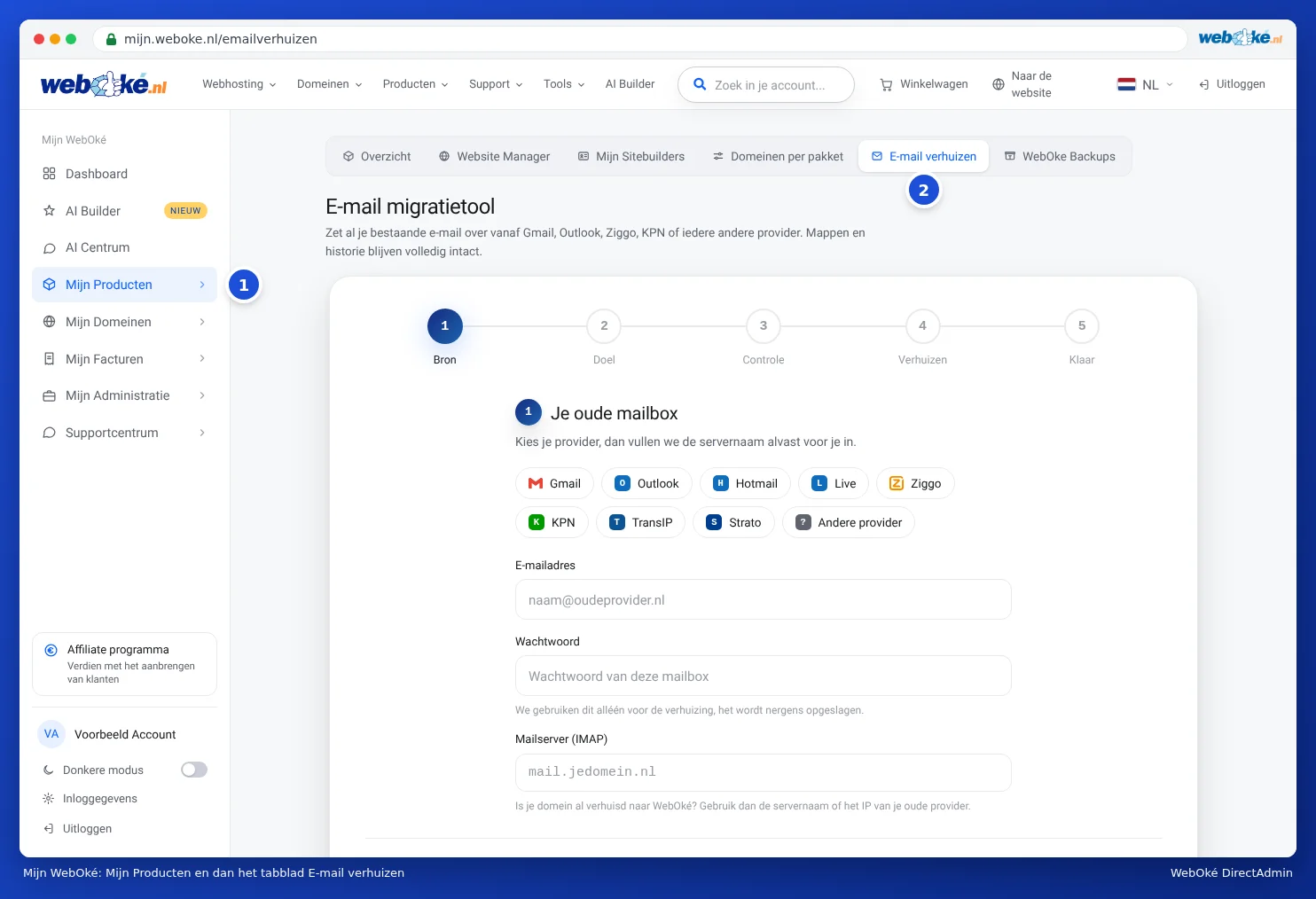
The migration takes five steps: Source, Target, Review, Transfer and Done.

Step 1: your old mailbox (Source)
- Choose your old provider (1): Gmail, Outlook, Hotmail, Live, Ziggo, KPN, TransIP or Strato. The tool then fills in the server name for you. If your provider isn't listed, choose Other provider and enter the server name yourself under Mail server (IMAP).
- Enter the Email address (2) and Password of your old mailbox. We only use the password for the migration and don't store it anywhere.
- Click Next: destination mailbox. The tool automatically tests the connection.
Please note: Has your domain already moved to WebOké? Then enter the server name or IP address of your old provider under mail server, not mail.yourdomain.com. That address will already point to WebOké.
Migrating from Gmail
Google doesn't let external programs sign in with your regular password. So you create an app password once: a special password just for this kind of connection. First turn on two-step verification on your Google account, then create the app password. Enter that as the password for your old mailbox. If you choose Gmail, the tool shows a link to the right page on Google.
Migrating from Outlook, Hotmail, Live or Microsoft 365
Microsoft no longer accepts a password for retrieving mail, not even an app password. So in the tool, you sign in to Microsoft once:
- Choose Outlook, Hotmail or Live as your old provider (or enter outlook.office365.com as the mail server).
- Click Sign in with Microsoft (1).
- Open microsoft.com/devicelogin and enter the code shown by the tool. Use Copy to copy the code to your clipboard.
- Sign in with the Microsoft account of the mailbox you want to migrate and click Accept.
- The tool automatically detects that you're signed in and shows Signed in to Microsoft as with your address.
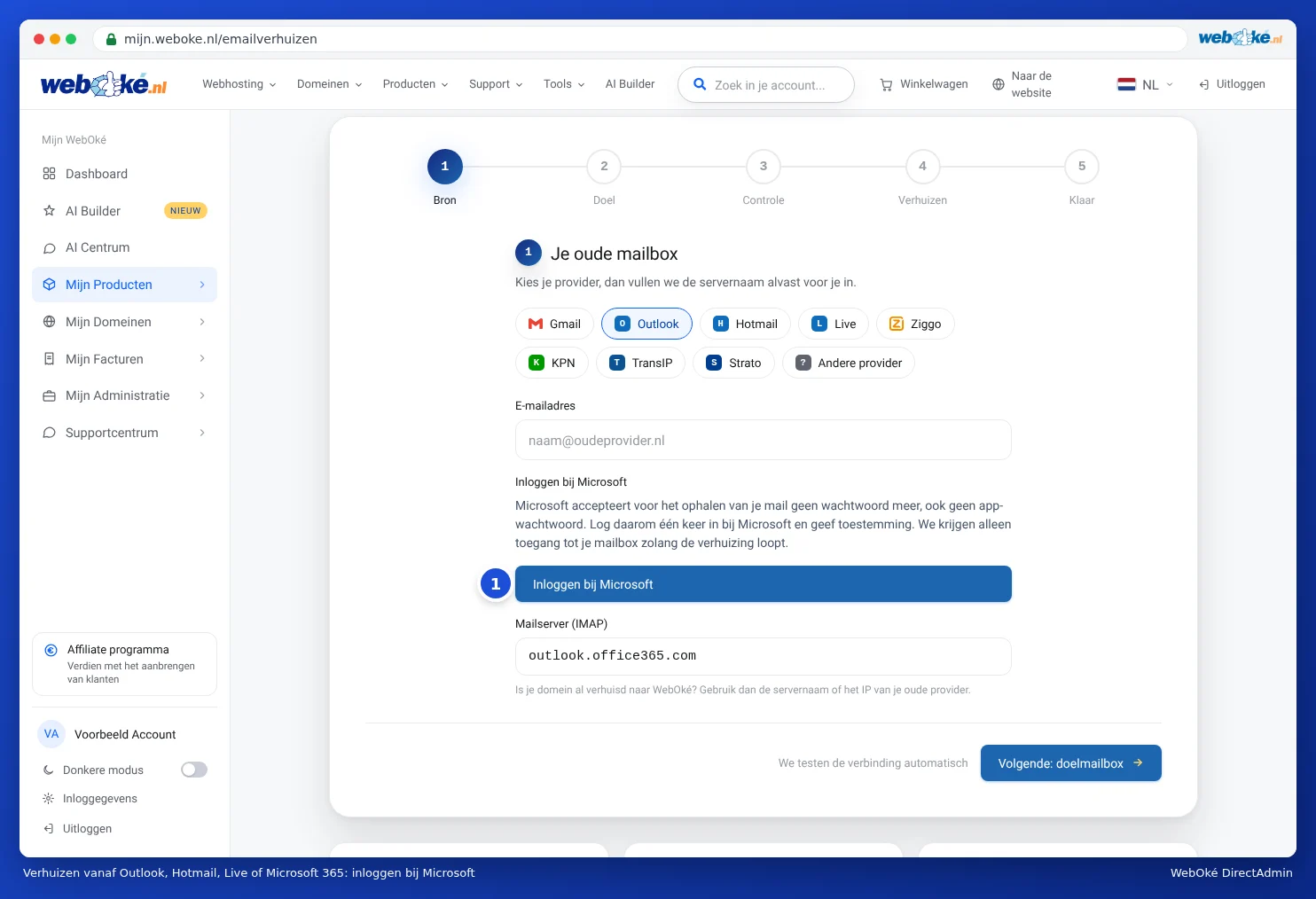
This works for personal accounts (Outlook.com, Hotmail, Live) and for business Microsoft 365 mailboxes. We only have access to your mailbox while the migration is running. We revoke that access afterwards.
Does Microsoft say you need approval from an administrator? Then your organisation doesn't allow this. Ask the administrator of your Microsoft 365 environment to approve WebOké E-mailverhuizing, or export your mail in Outlook (the programme on your computer) to a .pst file and get in touch with us.
Step 2: your mailbox at WebOké (Target)
- Enter your new address under Email address at WebOké, along with the password for that mailbox. Don't have a mailbox yet? Create one first (see Creating an e-mail address).
- The tool fills in the mail server itself as soon as your domain points to WebOké. If it doesn't point to us yet, you'll see Server name needed. In that case, enter the server name of your package, for example linux2023.webawere.nl. You'll find it in your welcome email and in My Products (see Finding your server name and DA user name).
- Click Next: review.
Step 3: review and start
The tool has tested both mailboxes and shows how many messages and folders it found in your old mailbox. Folders that aren't email, such as a calendar or contacts, won't be migrated. These are listed separately.
Want an email when the migration is finished? Enter your email address under Send me an email when the migration is finished. Click Start migration.
Steps 4 and 5: migrating and done
The migration runs on our servers. You can see how many messages have already been copied per folder. You don't need to wait: feel free to close the page, the migration will keep running. When it's finished, you'll see Your email has been moved with the number of messages, folders and the duration. Use Log in to webmail to check the result straight away, and Migrate another mailbox to start on the next mailbox.
You can run up to three migrations at the same time. If you have more mailboxes, wait until one finishes.
The migration is paused
If something goes wrong along the way, the tool pauses the migration. Nothing is lost in that case. You'll see why:
- Your WebOké mailbox is full. Increase the mailbox size in DirectAdmin (see Storage per mailbox and what happens when it's full) or delete large messages, then click Try again.
- The password is no longer accepted. Check the password and click Try again.
- The connection was lost. Click Try again.
- Some messages could not be retrieved. This mostly happens with folders containing calendar items or contacts. Click Try again. If it keeps getting stuck on the same folder, send the log to support.
After clicking Try again, the migration continues where it left off. Use Show technical log to see exactly what happened, and Copy log to easily include it in a ticket.
Frequently asked questions
Does my mail stay with my old provider? Yes. The tool copies everything and deletes nothing.
How long does a migration take? A small mailbox is finished within a few minutes. A mailbox with many thousands of messages or large attachments can take a few hours.
Mail still arrived at my old address after the migration. Run the migration again. Messages that have already been copied will be skipped. Only new messages will be added.
Is it safe to enter my password? Yes. We only use it during the migration to read your old mailbox. It's not stored anywhere.