
Chapter 4 · 4.2
Uploading and downloading, including large files, whole folders and zip
You put files into your WebOké Nextcloud by uploading them. You can do this with the New button or by dragging them from your computer into the browser window.
Uploading files or a folder with New
- In Files, go to the folder where the files should go.
- Click New.
- Choose Upload files (1) to select one or more individual files, or Upload folders (2) to upload a whole folder with everything in it.
- Choose the files or the folder on your computer and click Open or Upload (the name of the button depends on your computer and browser).
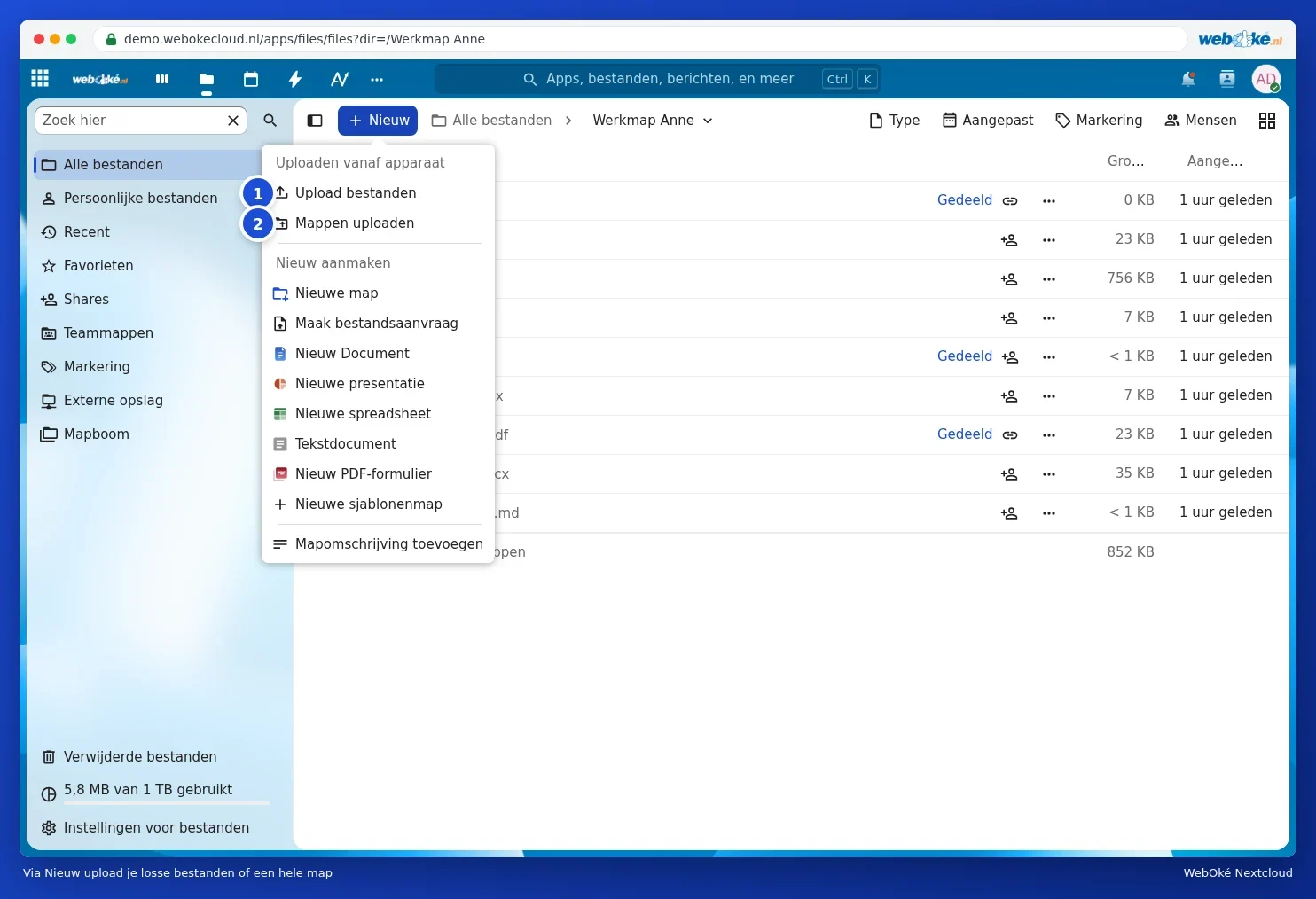
At the bottom of the screen you'll see a progress bar. You can carry on working in Nextcloud in the meantime, but don't close the tab before the upload is finished.
Drag and drop
Even faster: drag files or folders from Explorer (Windows) or Finder (Mac) into the list of files in your browser. If you drop them onto a folder in the list, they'll end up in that folder.
Large files
Your WebOké Nextcloud uploads large files in chunks. So a video of several gigabytes can simply be uploaded via the browser. Keep in mind that the upload will take as long as your internet connection allows. If you want to transfer a lot of files or very large files, or if your connection is unstable, use the Nextcloud Files desktop app (Why the desktop app? Browser, app or network drive). This automatically resumes after an interruption.
Please note: is there already a file with the same name in the folder? Then Nextcloud will ask what you want to do: replace the existing file, skip the new one, or keep both. If you replace it, the old version is kept under Versions (see Restoring an older version and naming versions).
Downloading
- One file: right-click the file (or the three dots) and choose Download.
- A whole folder: choose Download for the folder too. You'll then get a single zip file containing the entire folder.
- Several files at once: tick the files using the checkboxes on the left of the list. At the top you'll see how many you've selected, with buttons such as Add to favourites, Manage tags and Move or copy. Click the three dots (1) and choose Download (2): you'll get everything together as a zip file. The same menu also has Delete files.

Tip: on Windows, you extract a zip file by right-clicking it and choosing Extract All; on Mac, you simply double-click it.