
Chapter 7 · 7.7
The cloud icon: reading status, activity and errors
The Nextcloud cloud icon sits on Windows in the bottom right of the taskbar (sometimes behind the up arrow), on the Mac at the top in the menu bar, and on Linux in the notification area. The icon shows you at a glance how syncing is going.
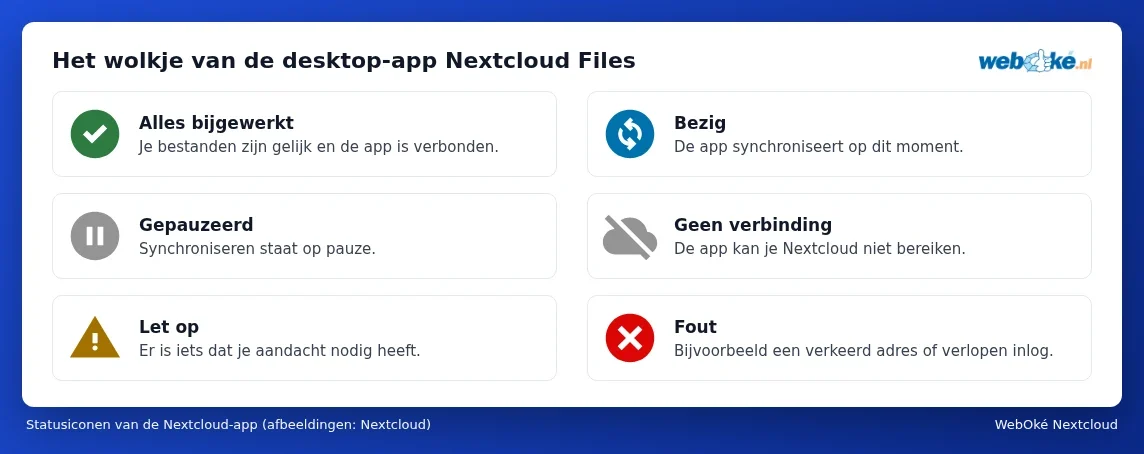
| Icon | Meaning | What do you do? |
|---|---|---|
| Green with white tick | Everything is up to date and the app is connected. | None. |
| Blue with two spinning arrows | The app is syncing. | Wait a moment. With many or large files, this can take a while. |
| Grey with two lines | Syncing is paused, usually because you paused it yourself. | Right-click the cloud icon and choose Resume sync. In the app's settings, next to your account, it's called Resume sync. |
| Grey cloud icon with a line through it | No connection to your Nextcloud. | Check your internet connection. Does your Nextcloud work in the browser? See Synchronisation on your computer is stuttering. |
| Yellow triangle with exclamation mark | Something needs your attention, for example a file that couldn't be synced. | Click the cloud icon and read the message. |
| Red with white cross | An error in the settings, for example a wrong address or an expired login. | Click the cloud icon and log in again if needed. |
The cloud icon window
Click (with the left mouse button) the cloud icon. A window opens with:
- At the top, your name and profile picture. Click it for the account menu: add an account, pause or resume syncing, log out, and the app's Settings. There you'll also see your status (online, away, do not disturb), just as in the browser.
- Buttons to open your local folder and your Nextcloud in the browser, and the apps in your Nextcloud, such as Talk.
- The activity list: which files have just been synced, notifications from your Nextcloud (such as a file shared with you), and warnings. A file that hasn't been synced is listed with the reason why.
Right-clicking the cloud icon (Windows) gives you a short menu to open the window, pause syncing, open the settings, or quit the app.
Messages you'll often see
| Message (sometimes in English) | What it means | Solution |
|---|---|---|
| A file with an invalid name, or with characters that aren't allowed | The name contains characters Windows doesn't recognise, or ends with a space or a full stop. | Rename it in the browser. See Cleaning up files with forbidden characters so Windows syncs again. |
| File is in use, or is locked | The file is open in another program. | Close the program; the app will try again afterwards. |
| Conflict, or Resolve conflict | The same file has been changed in two places at once. | See Conflicted copies: what they are and how to resolve them. |
| Insufficient disk space on the server | Your storage in your WebOké Nextcloud is full. | Clean up or upgrade, see Storage full: making room or upgrading. |
| Server is in maintenance mode | WebOké is updating your Nextcloud. | Wait a moment; the app will carry on automatically afterwards. |
| A message asking you to log in again, or a red circle with a cross | The app's access has been revoked, or your password has changed. | Click the cloud icon and choose Login; you'll go through the steps again in the browser. |
Tip: want to report a problem to WebOké? Take a screenshot of the cloud icon's window, including the message, and mention the app's version. You'll find this in the app's settings. See How to report a problem to WebOké.