How does FTP work at WebOké?
Are you a KPN customer and can't set up an FTP connection? Click here for more information.
In this article we explain how to create FTP accounts and which settings to use to set up an FTP connection.
Settings to use in your FTP client
We recommend FileZilla as your FTP client, mainly because it is easy to use.
Host: Enter the server name here. This article explains how to find out which server your domain runs on.
Username: Enter the username you set yourself in the control panel; this is explained further on in this article. You can also use the username of the DirectAdmin control panel, which you received by email after ordering the hosting package.
Password: Enter the password that belongs to the FTP account you created. If you use the default DirectAdmin username, the FTP password is the same as the password in the email you received after ordering the hosting package.
Port: Enter 21 here.
Creating FTP accounts in the DirectAdmin control panel
- Log in to DirectAdmin. You can do this in My WebOké (mijn.weboke.nl) by going to My Products and clicking the "DirectAdmin" button next to the hosting package.
- Go to FTP Management
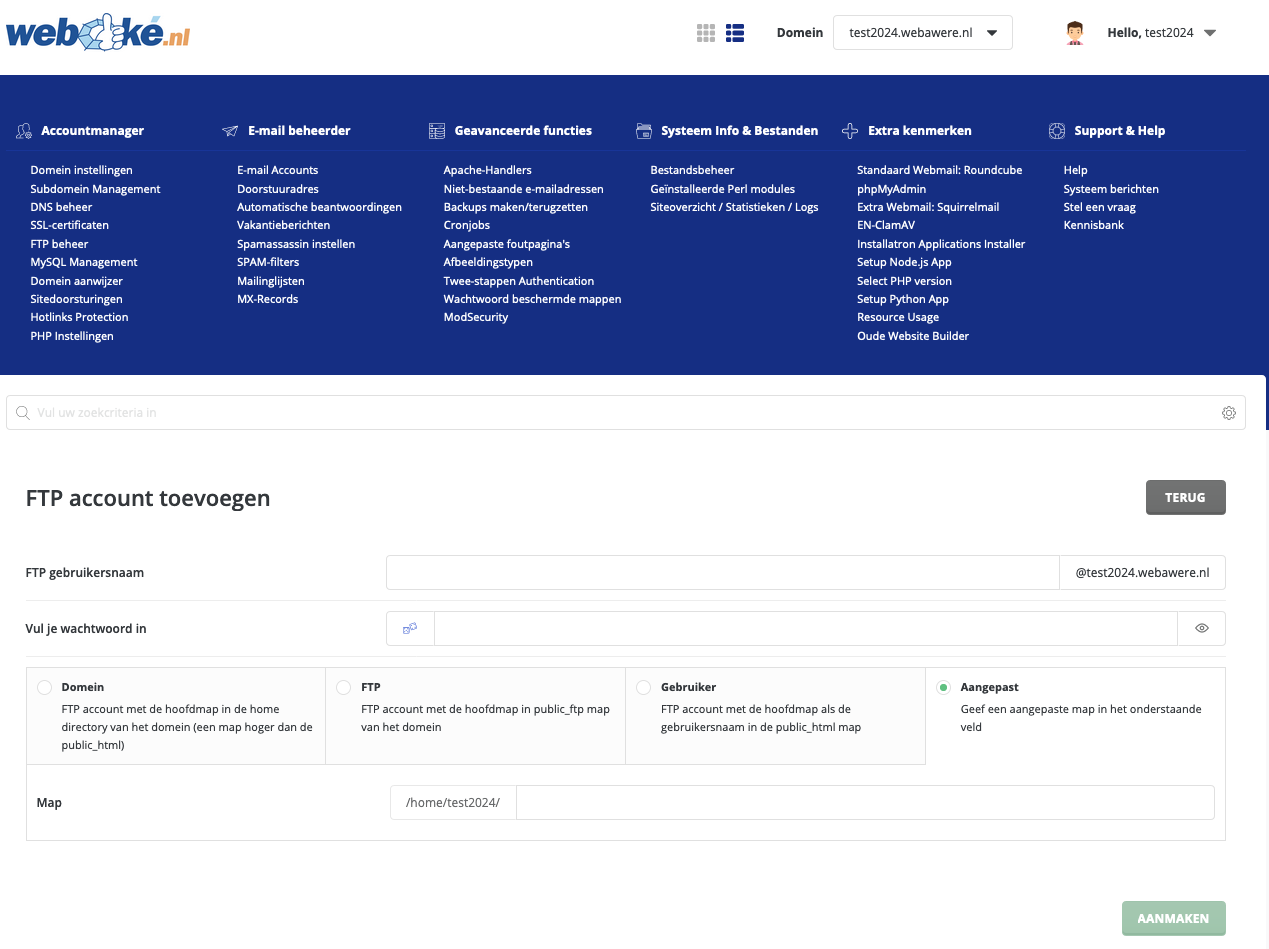
- Click Create FTP Account
- Enter the username of the FTP account here. On the same screen you can also specify which locations/files this FTP account should have access to. By clicking custom you can specify the path to the desired location yourself.