
Installing WordPress in DirectAdmin
In this article we explain how to easily install WordPress in your WebOké hosting package.
- Log in to your WebOké account and go to My Products
- For the hosting package concerned, choose 'Open control panel'
- In the left-hand menu, under '1-click login', click 'DirectAdmin'
- You are now logged in to the DirectAdmin control panel and will see the screen below. Click 'Installatron Applications Installer' there.
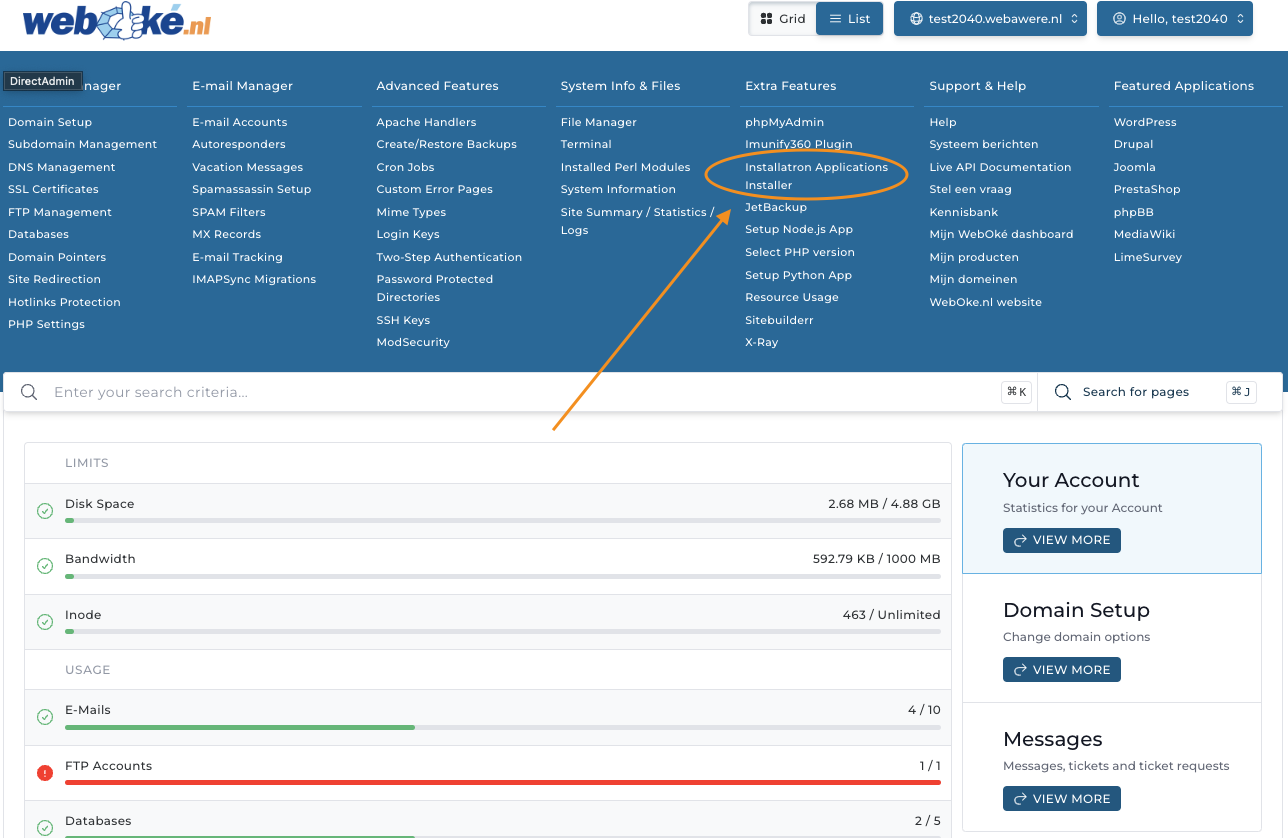
- You have now opened Installatron. In Installatron you can easily install lots of different applications on your domain, but in this case we will focus specifically on WordPress.
- On this screen, click 'Install this application'
- On this screen you can change the installation settings. We recommend choosing the URL starting with https:// under 'Domain' and leaving the other settings as they are.
If you do not want to install the WordPress site on the root domain but on, for example, voorbeelddomein.nu/nieuwesite, you can enter 'nieuwesite' under 'Path'.
You can set your own admin username and password or have them generated. It is important that you remember them and that you have access to the email address set as the admin email address.
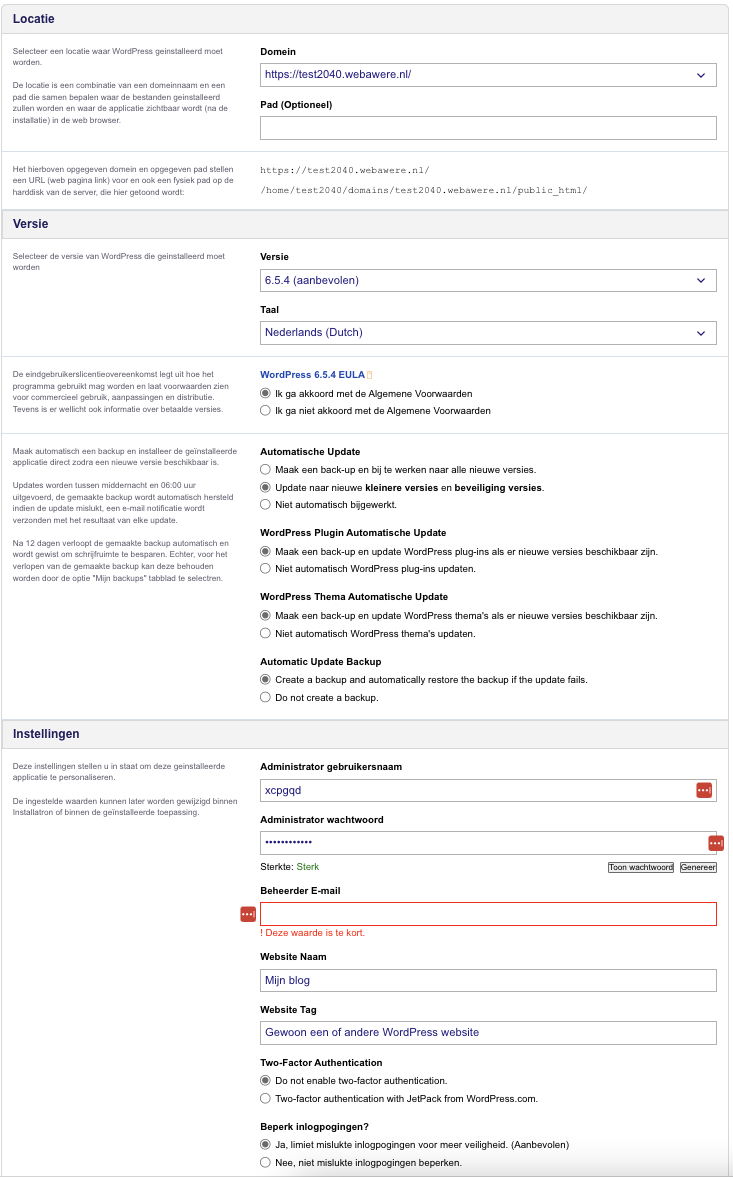
- That's all! From now on you can log in to the WordPress site directly via the Website Manager in the client area: log in to mijn.weboke.nl and go to My Products, Website Manager.
No hosting package yet? At WebOké you can install WordPress on affordable WordPress hosting with DirectAdmin, LiteSpeed and free SSL.