
Change password of a mailbox/e-mailaddress
In this article we explain how to easily change the password of your mailbox. You don't need to know the old password for this.
Tip: not sure if you're currently entering the correct password when adding your mailbox to an email application like Outlook? Try logging into the webmail. If logging in there doesn't work, then an incorrect password is indeed being entered.
Step 1 - Log into your WebOké account and go to 'My Products'.
Step 2 - Click on 'Open DirectAdmin Control Panel' for the relevant hosting package.

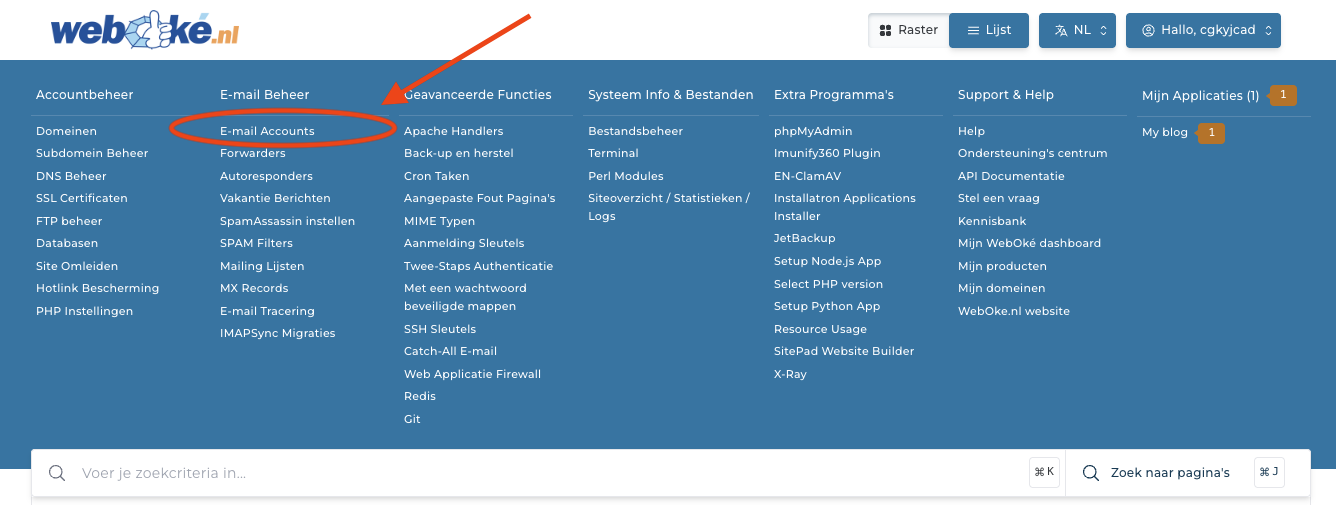
Step 3 - Click on 'E-mail Accounts'.
Step 4 - Click on the 3 dots to the right of the mailbox whose password you want to change.

Step 5 - Click on 'Change Password/Username'

Step 6 - Enter the new password and click 'Save'. Create a strong password for your mailbox and don't use this password with other accounts/websites in combination with this email address.

That's it!
Note: If you had the mailbox active in email applications like Outlook, Thunderbird and Apple Mail, then the mailbox will no longer work there until you add the new password to these applications.
If you don't do this, the application will keep trying to log into the mailbox with the old password.