
No access to your VPS anymore: what now?
Can't get in? Work through these steps from top to bottom.
1. Is your VPS running?
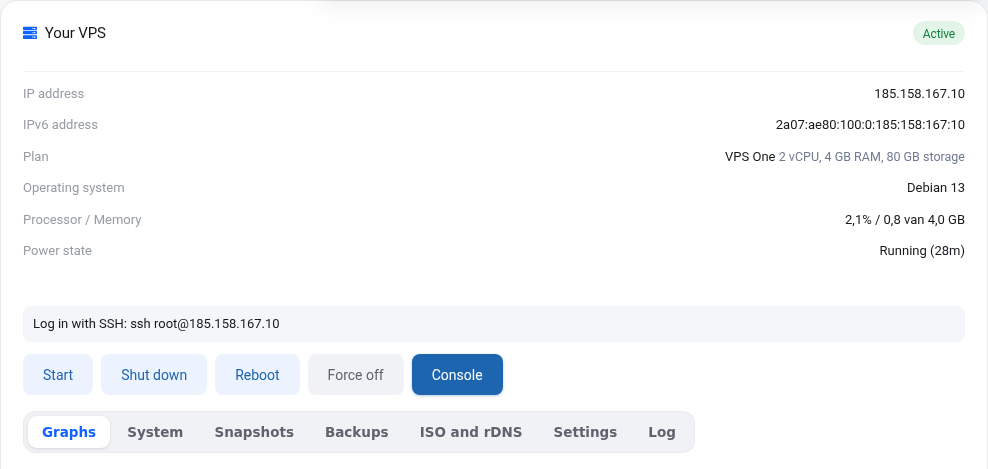
Check Power in your VPS screen. If it is off, click Start. If it says "suspended", check My Invoices for an open invoice: after payment your VPS comes back on automatically.
2. Lost your password
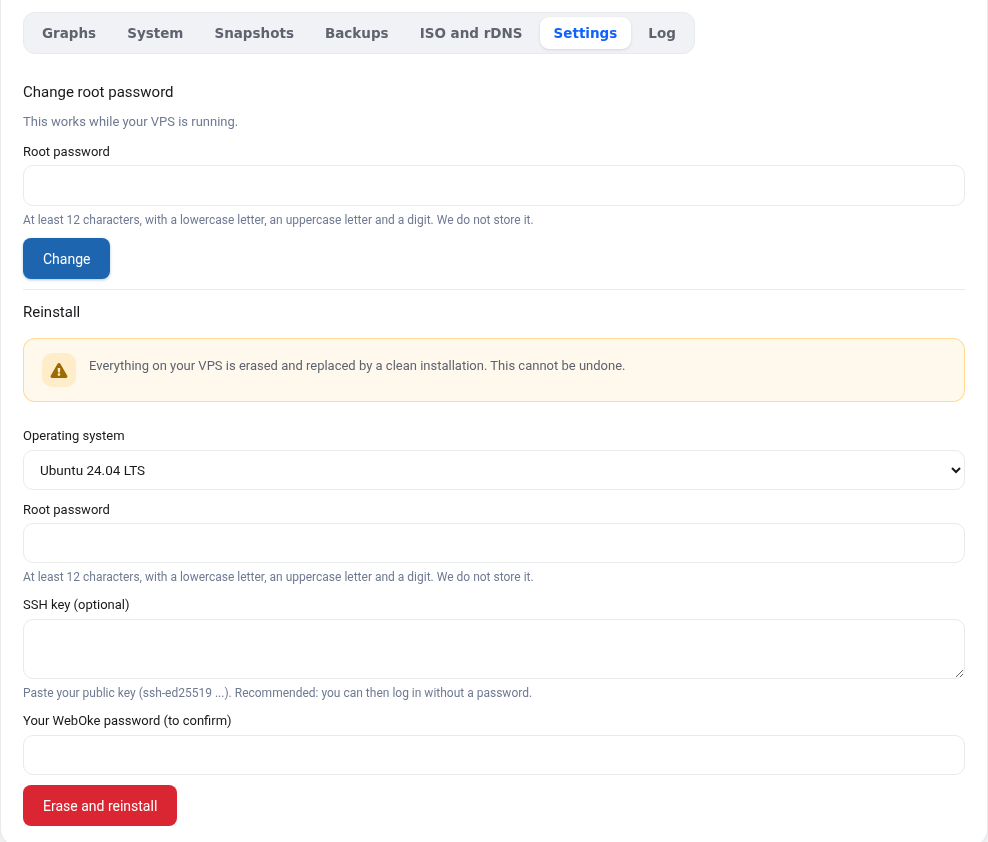
Set a new root password in the Settings tab. This works without a restart, but only if your VPS is running and the qemu-guest-agent is active. Check the System tab: if it shows your operating system, the agent is running.
3. Locked out by your own firewall or SSH settings
Click Console in your VPS screen. You then see your VPS screen in your browser, as if you were sitting next to it with a keyboard and monitor. This also works when SSH or the network is down: log in as root and undo your change (for example ufw disable). Pasting works with the Type clipboard button.
If that does not work, first take a snapshot so you can always go back. Then you have two options:
- Restore a backup from a day when it still worked (Backups tab).
- Boot from an ISO (ISO and rDNS tab), for example a Debian or Ubuntu installation ISO in rescue mode. This lets you mount your disk and undo the setting.
4. Slow or unreachable
Check the Graphs tab. If processor or memory stays at 100% for a long time, something is running away or your plan is too small. Choose a bigger plan via My Products.
Stuck?
Your VPS is unmanaged, so you manage what happens inside your server. But we will not leave you hanging: open a ticket describing what you already tried and we will think along.
