
Adding a mailbox to the iPhone (Apple Mail)
In this article we explain how to add a mailbox you created yourself in DirectAdmin (click here to read how to do that) to the Mail app on the iPhone.
Step 1: Open the settings on your iPhone and open the mail settings. You can do this by searching for 'Mail Accounts' at the top.
Then tap 'Add Account'

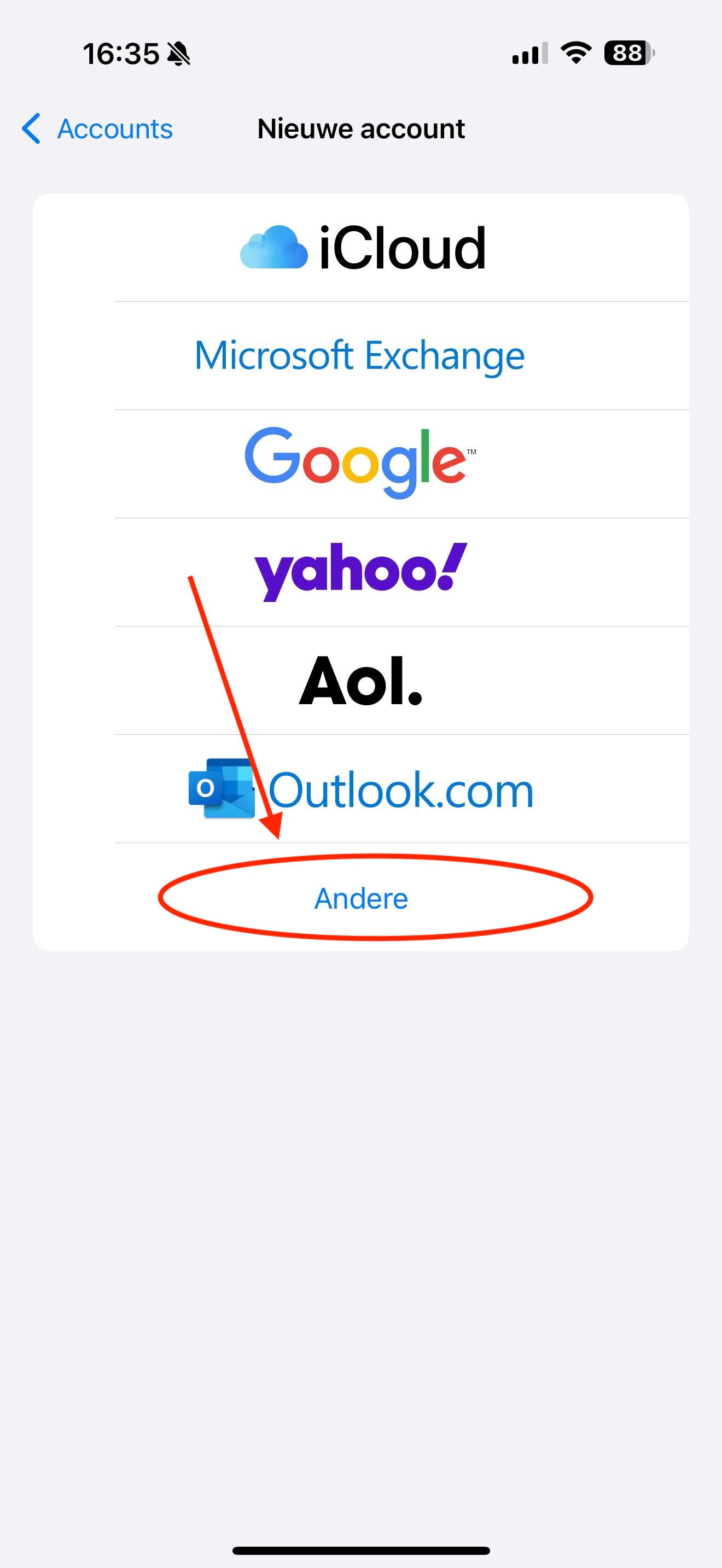
Step 2: Tap 'Other'
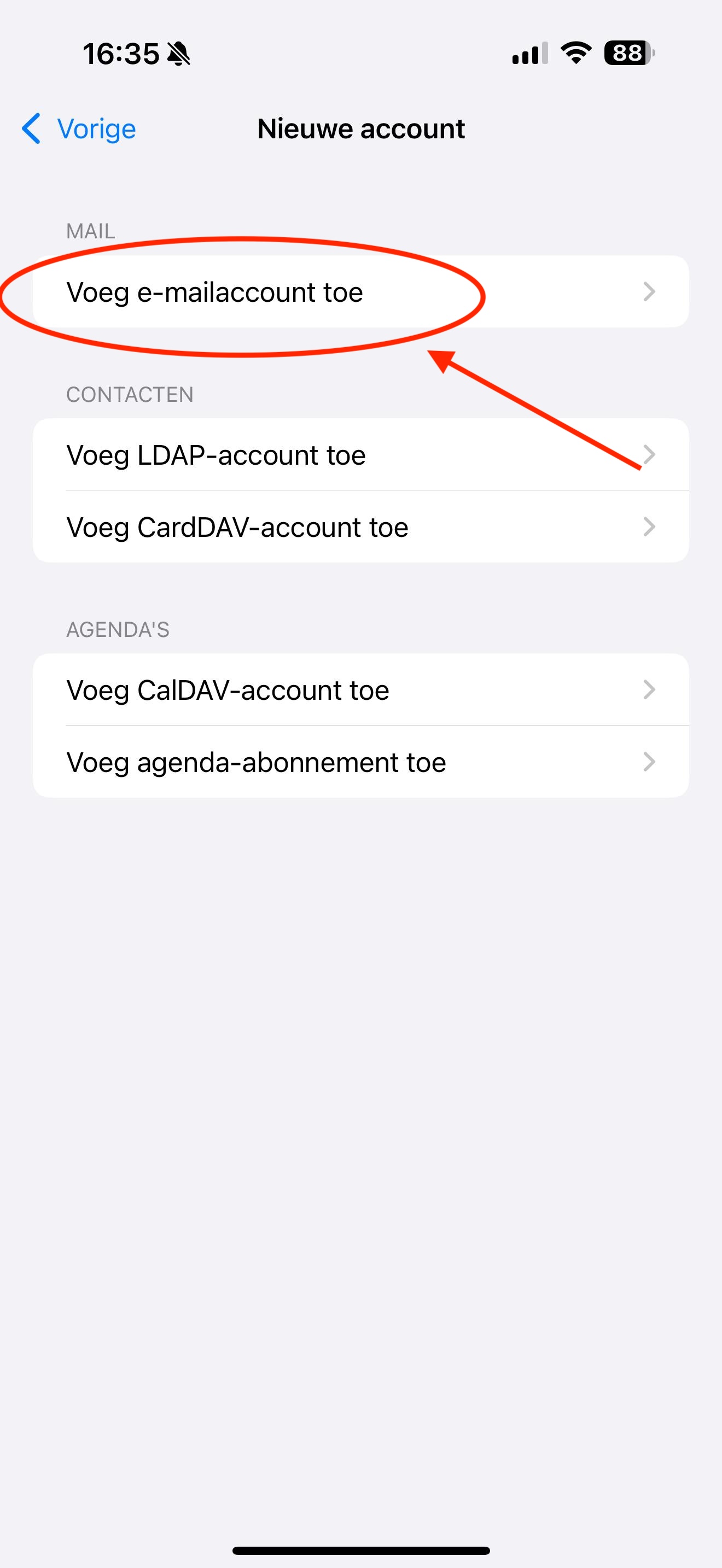
Step 3: Tap 'Add Mail Account'
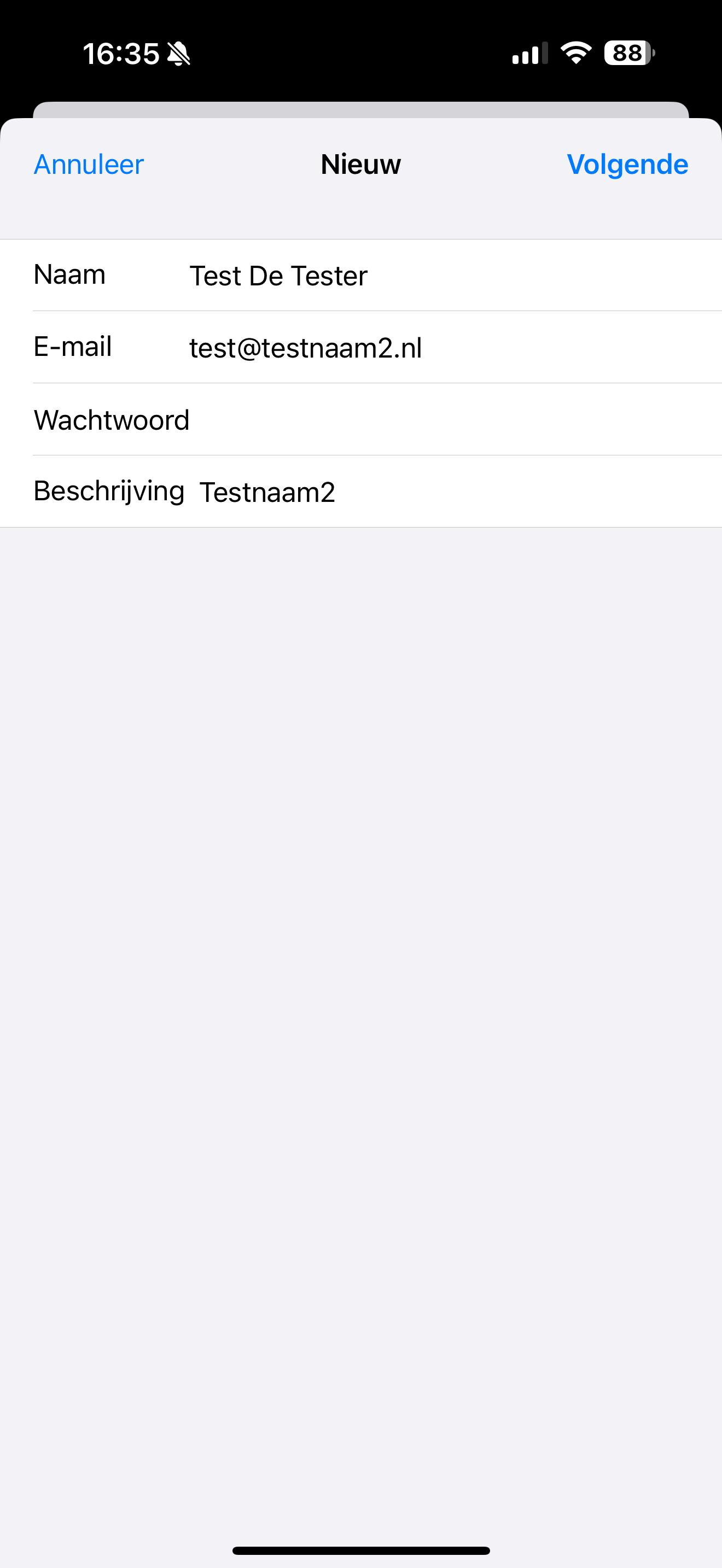
Step 4: Fill in all the fields here:
Name: This is the display name of the mailbox. When you send an email, the recipient sees this name as the sender in their inbox.
Email address: This is the email address you created in the DirectAdmin control panel
Password: You set this password when you created the mailbox. Forgotten the password? Click here to see how to change it.
Step 5: Fill in all fields, even if they are marked as optional.
Email address: This is the email address you created in the DirectAdmin control panel
User name: This is also the email address you enter in the other fields. It must always be filled in.
Password: You set this password when you created the mailbox. Forgotten the password? Click here to see how to change it.
Account type: IMAP
Incoming and outgoing mail host name: This is your domain name, so in this example testnaam2.nl. Sometimes your domain name is filled in here with IMAP or SMTP in front of it; you can remove that, the domain name alone is enough.
Please note: Do you only have an Email Only package with us and is your website hosted with another provider? Then entering the domain name will not work. In that case, enter the server name of your Email Only package instead. You can find it in the email you received when you purchased the package. The server name looks like this, for example: linux2410.webawere.nl.
