
Add contacts to the Contacts app on MacOS
Because Apple natively supports CardDAV on all its devices, adding and synchronizing your Nextcloud contacts to your Mac is a piece of cake.
Step 1 - To add your contacts to your Mac, you need to create an app password, click here to learn how to create one.
Step 2 - Open the Contacts app on your Mac. Click on 'Contacts' in the menu bar at the top left and then on 'Add Account...'.

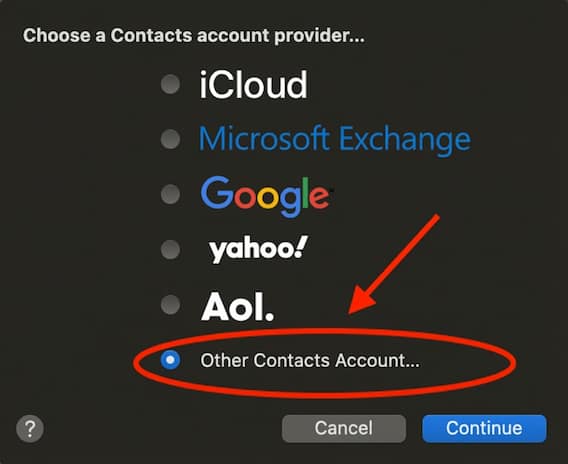
Step 3 - Click on 'Other Contacts Account...'
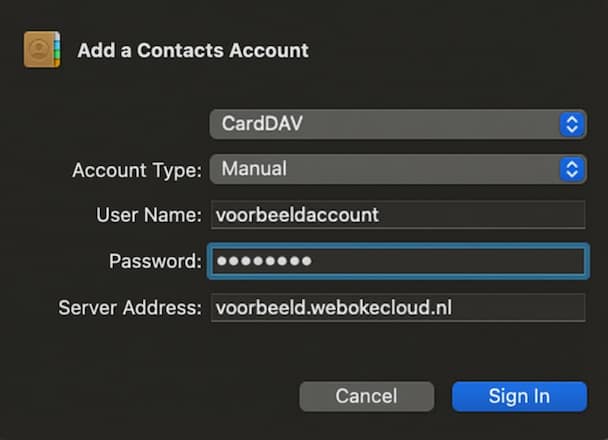
Step 4 - Choose 'Manual' from the dropdown menu at 'Account Type'.
Then enter your Nextcloud username and the app password you created.
Don't know how to create an app password? Click here.
Then enter your Nextcloud server URL and click 'Sign In'.
That's all! The contacts stored in your Nextcloud account are now synchronized with your Mac.
