
Enable Two-Factor Authentication (2FA) in Nextcloud
We always recommend using 2FA, especially for important accounts like your Nextcloud account.
Fortunately, this can be activated in a few steps. In this article we explain step-by-step how to do this.
Step 1 - Click on your profile in the top right and then on settings in the expanded menu.
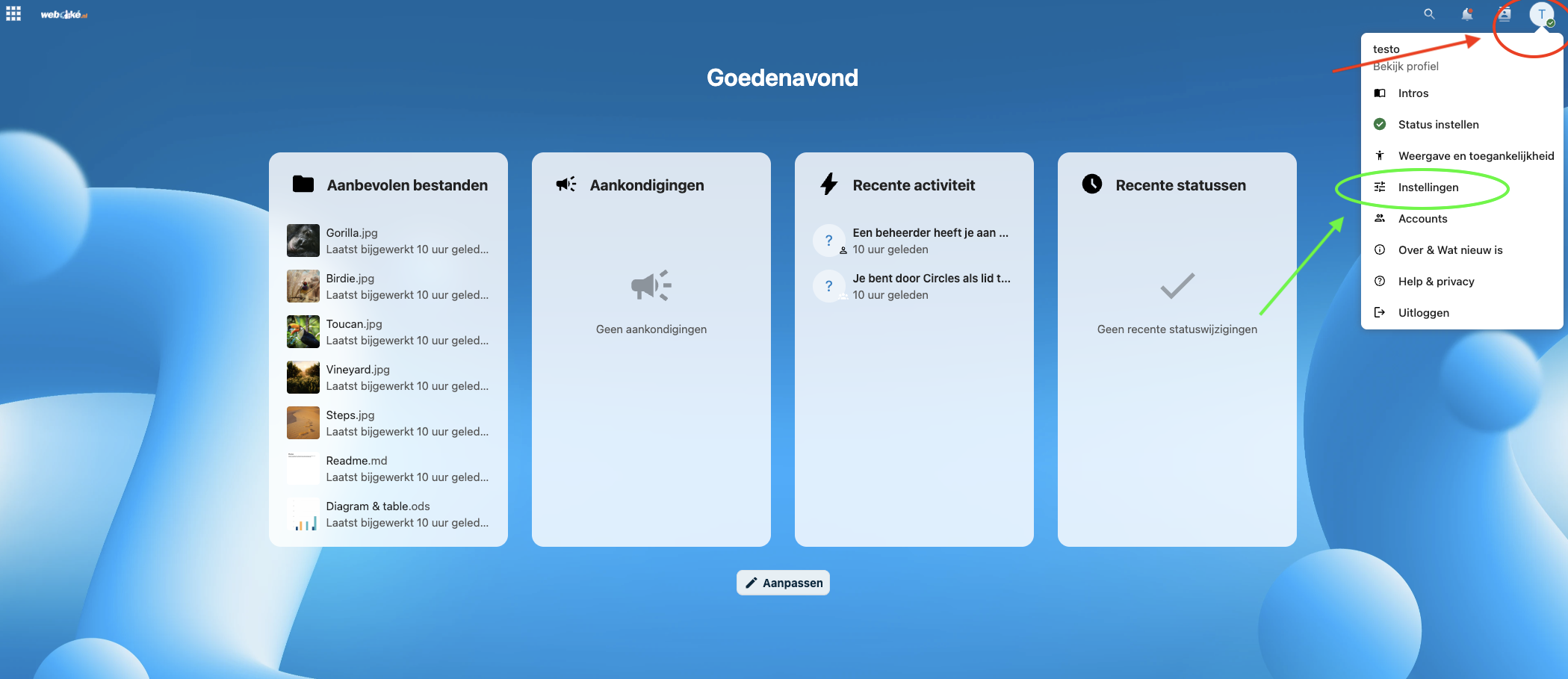
Step 2 - Click on security on the left

Step 3 - Check Enable TOTP here.

Step 4 - Scan the QR code with your 2FA app (such as Google/Microsoft Authenticator or Bitwarden). You can also link your Nextcloud 2FA with the TOTP secret to programs like 1Password and LastPass.
After doing this, click on Generate backup codes.

Step 5 - Click on Save backup codes to download the code as a text file to your PC.
With this code you can access your Nextcloud account when you don't have access to the device where the 2FA code is generated, for example when you've lost your 2FA app login credentials or your smartphone is broken.
We recommend always storing this code safely on a different device than where your 2FA app is running.

