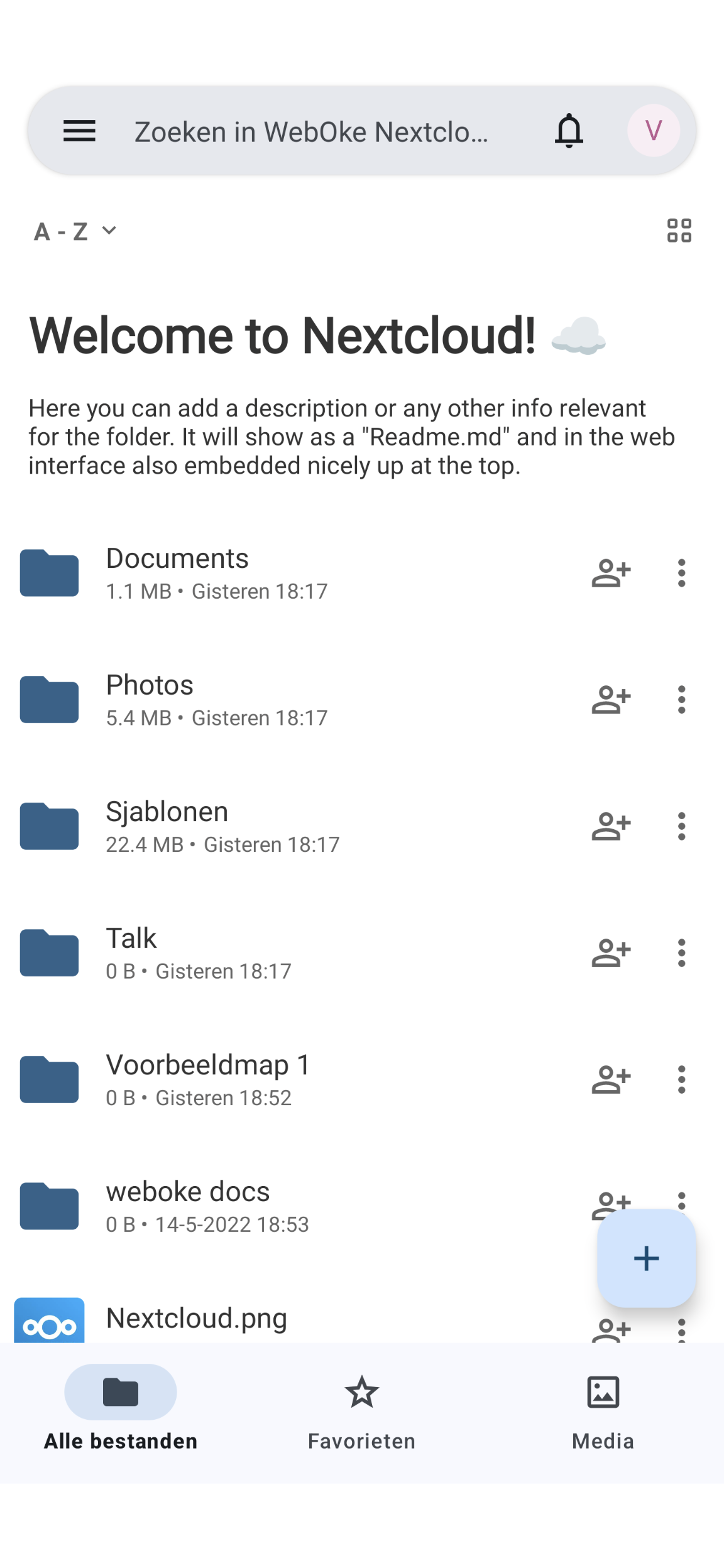
Setting up the Nextcloud app on Android
Installing and setting up the Nextcloud app on Android takes no time at all.
Because the login process on Android runs through the browser, you do not need to create an app password for it; you can use your normal login details.
Tip: Also install the Nextcloud Talk and Nextcloud Notes apps; they are set up in the same way.
Step 1: Install the Nextcloud app on Android, click here to go straight to the app in the Google Play Store.
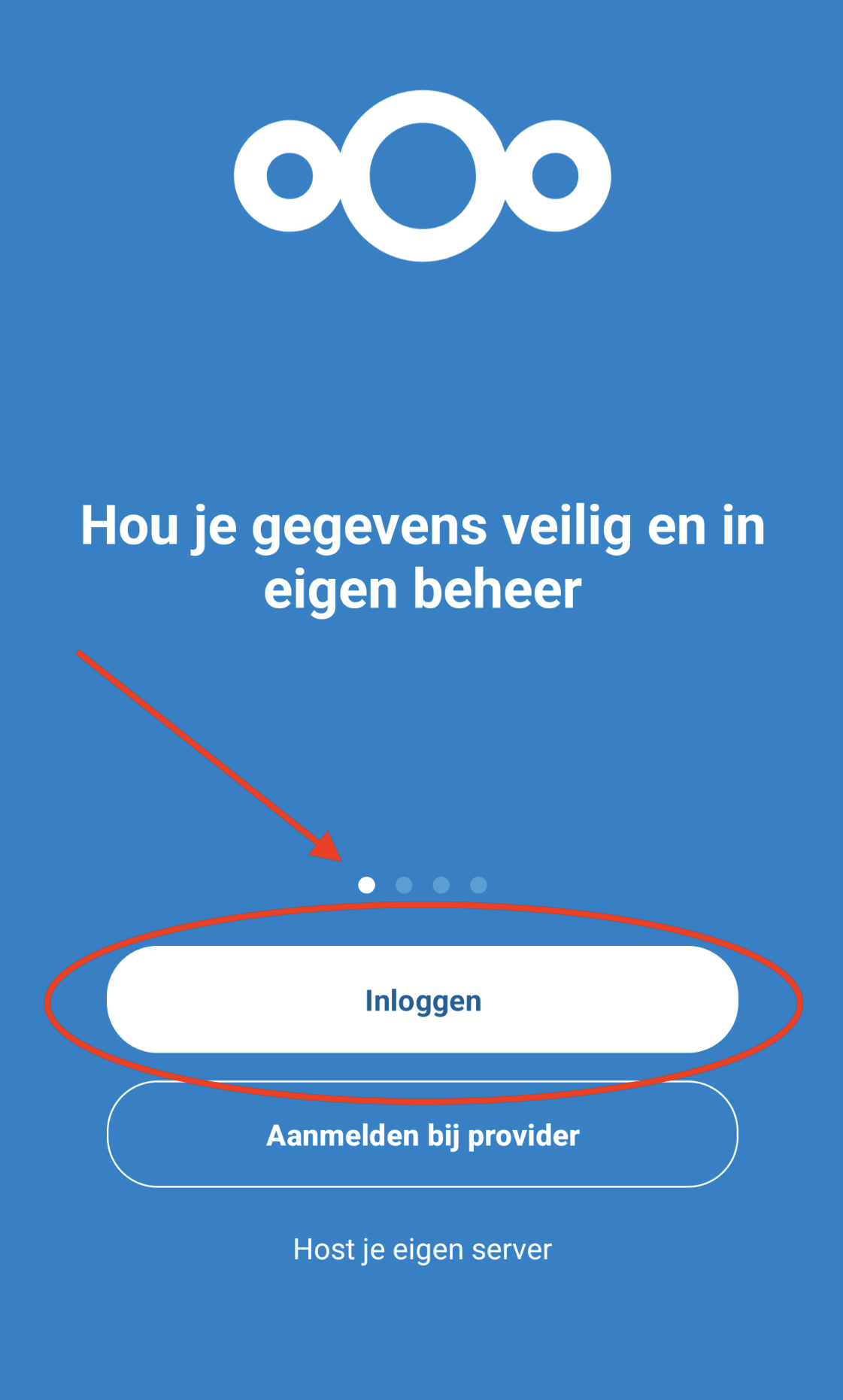
Step 2: In the app, tap 'Log in'
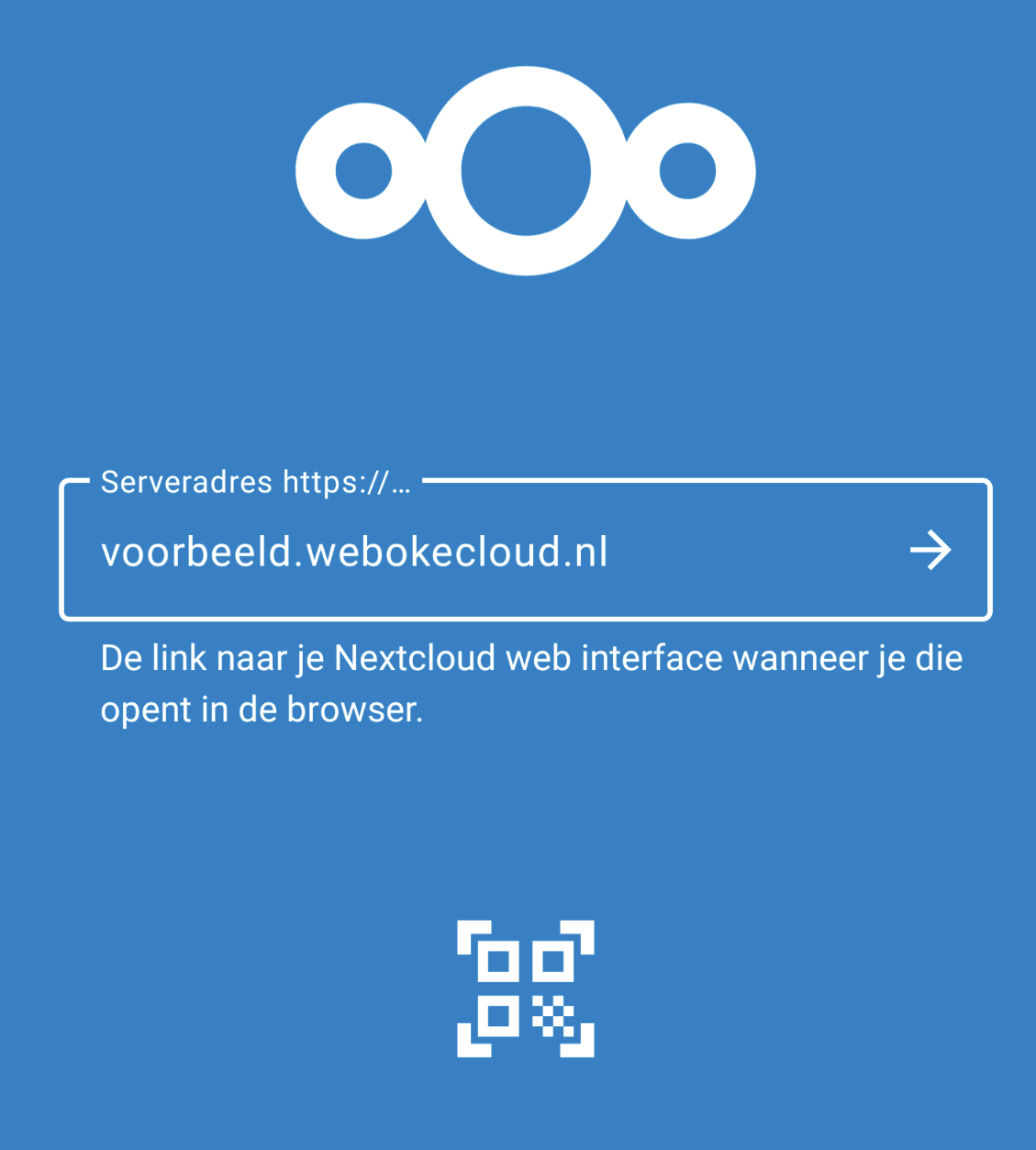
Step 3: Enter the URL of your Nextcloud server and continue.
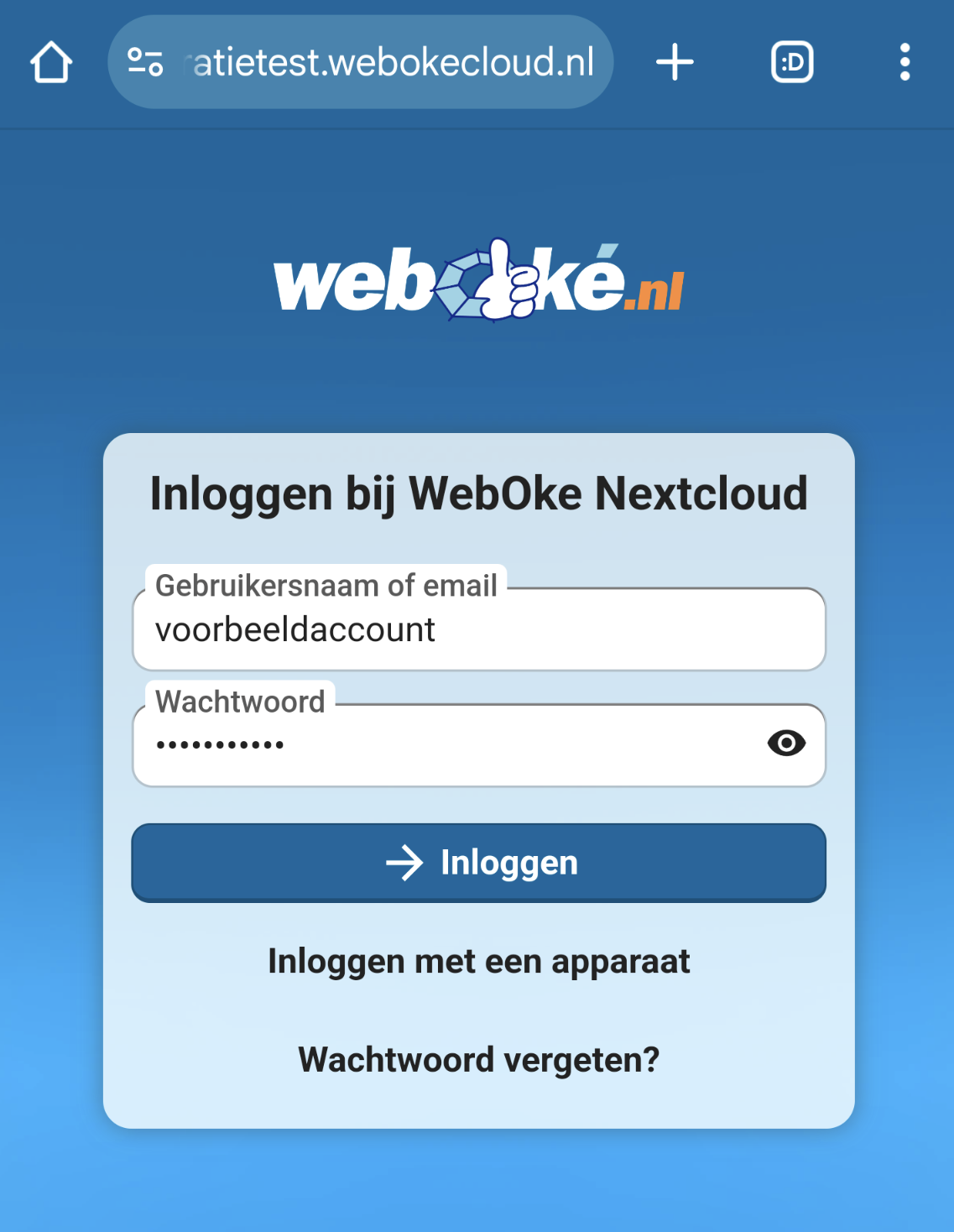
Step 4: The browser then opens. Enter the user name and password of your Nextcloud account there, then click 'Log in'.
Step 5: If you have set up another 2FA method yourself, such as time-based tokens, you can choose which 2FA method you want to use on the next screen.
If you have not set up another 2FA method, you automatically continue to 2FA using a code sent to your email address. Enter this code here to log in.
Step 6: That's all! You are now logged in to your Nextcloud account and have an active connection between your Nextcloud account and your Android phone.